DHL Next Day
UPS Global Shipping
DHL Worldwide
Free Shipping Above £50
Not sure where to start?Try these collections:
This site uses cookies for better user experience and analytics.
Showing all videos
No videos match your search.
In this tutorial, we explain how to set up an Aim Solo 2 for learning a new track.
This video runs through the setup of an AiM Solo 2 DL and SmartyCam HD from scratch within the Race Studio 3 software. Making sure all channels are imported from the ECU of your vehicle and then getting through to getting your pages setup on the Solo 2 DL and the SmartyCam stream configured for fantastic video overlays.
This tutorial looks at the use of a SmartyCam HD/HD GP, the configuration and application for your driving purposes.
This video is a step-by-step guide to setting up and configuring a SmartyCam 3 Sport.
In this tutorial, the setup of a TPMS system with your Aim data logger is demonstrated and then analysis of tyre pressure monitoring data is discussed using Race Studio 3 Analysis.
The video runs through configuring Race Studio 3 software to get the dash to work with a Sim feed (iRacing).
This video will demonstrate how to set up a brake bias math channel to use on your dash and in your data analysis.
Learn how to install the MXK10 Dash Logger in your Kawasaki Ninja motorcycle.
In this video, we'll show you how to change the start up screen on your Aim display.
In this video well look at how to set up your MyChron 5 data logger from the first time you switch your device on.
In this video, we'll look at how to take your data from your MyChron 5 and import it into Race Studio for Analysis.
Unbox the SmartyCam 3 Sport motorsport action camera and learn more about its key features.
Unbox the MyChron 5S Data Logging Lap Timer and learn more about its key features.
Unbox the Formula Steering Wheel 4 and learn more about its key features.
First look at the Nissan GTR Plug & Play OEM Replacement Dash.
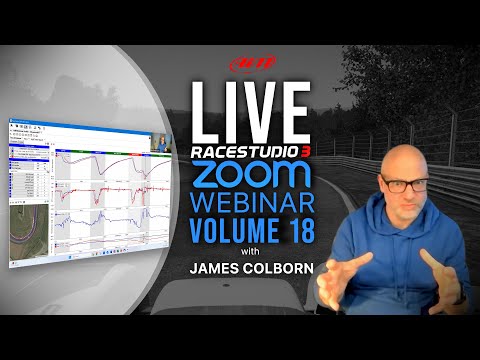
Come and join us as we discuss everything data and Race Studio 3, with the developer of the software its self, Emiliano Bina, based at Aim head office in Italy.
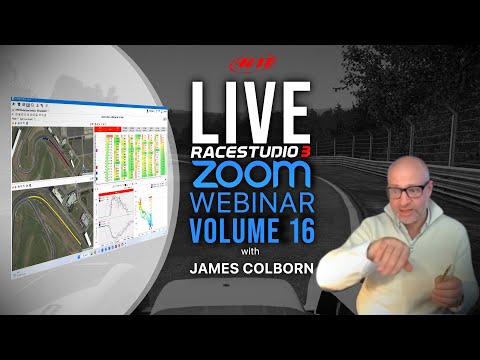
This month, our host, James Colborn, locks in with Radical Instructor, Roger Bromiley, Aim Operations Manager, James Mulley and Race Studios very own Software Developer, Emiliano Bina.
In this episode we go over the basics of data analysis (3 best views), configuring race studio 3, saving user profiles for data analysis and adding video to your data analysis workflow.
In this episode we go through the basics of your SmartyCam HD applications, setting up your dash, logger and SmartyCam, configuring your SmartyCam HD screen and looking at your SmartyCam HD videos.
In this episode we go through getting the most out of your Solo2 to maximise your performance.
In this episode, we go through getting the most out of your Aim hardware configurations.
Over the past few years Tyre Pressure Monitoring Systems (TPMS) have become more affordable and accessible to racers. From club to professional racing levels, the age old question of finding the optimal tyre pressure and temperature is available to all.
James Colborn and software developer Emiliano Bina discuss features of the Race Studio 3 Analysis software.
Find answers to any questions you may have about Aim devices, ready for the new season.
James Colborn and software developer Emiliano Bina discuss RS3 Analysis software features and bug fixes.
Explore the new possibilities and updates in RSA3, including customising your user profiles, track maps and more.
Learn about math channels, X/Y (Scatter) Plots and customising your personal view on Race Studio 3.
Learn how SmartyCam 3 Sport video footage and data work together in Race Studio 3 for data analysis.
Understand how to use SmartyCam video with Race Studio 3 to analyse driver inputs and improve performance.
Learn how to use SmartyCam video with Race Studio 3 to understand traffic, driving line and track geography.
Learn how to combine SmartyCam video and Race Studio 3 data to analyse performance and improve your driving.
Learn how to configure the SmartyCam 3 Sport to suit your needs.
Learn everything you need to know about the reference lap feature and how to use it.
Learn how to create and optimise user profiles in Race Studio 3 to make driver and vehicle data analysis quick and easy.
Learn how to effectively use the software for splitting, naming and analysing segments.
In this webinar, we look at two sessions. One session will be using data captured in real life and one session with data captured on a simulator using iRacing.
This video guides you through downloading data from an AiM device (in this case an AiM Solo 2) via WiFi. Featured will be connecting the the device, downloading the session and managing sessions already downloaded
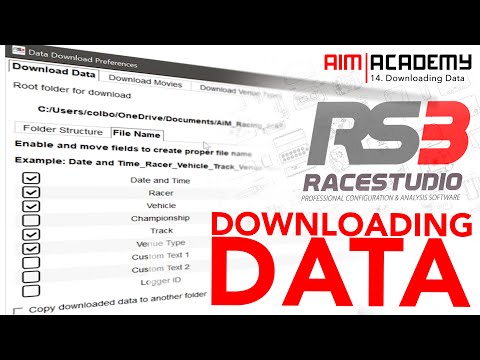
This video focuses on setting up AiM Race Studio 3 for fast, consistent and efficiency data downloads. The focus is on making sure all input variables are correct including driver, vehicle and session (venue) types
This video looks at downloading and updating your device's firmware using Race Studio 3. An AiM Solo 2 is used for the demonstration.
This video looks at the use of Race Studio 3 to configure an AiM Solo 2. From setting up the device name to customizing your own start screen logo, this video examines the simple configuration of the Solo 2.
This video looks at how to manage tracks in Race Studio 3. The tutorial features how to create collections of tracks and transfer them to your AiM device.
This video looks at connecting your AiM WiFi enabled hardware to an existing network (instead of using it as an Access Point). The advantages range from having your device and computer connected to the internet at the same time (useful for updates) through to managing multiple devices in Race Studio 3 at the same time.
Learn about measures graphs in Race Studio 3.
Understanding track maps in Race Studio 3.
Using Google Earth in Race Studio 3.
Analyzing lap replays in Race Studio 3.
How to insert GPS laps in Race Studio 3.
Managing user profiles in Race Studio 3.
Generating track reports in Race Studio 3.
Spotting trends in Race Studio 3 data.
Advanced tips for using measures graphs.
Using the channels report feature.
A comprehensive walkthrough of Race Studio 3.
How to connect your devices via Wi-Fi.
Downloading data in Race Studio 3.
Set up Aim Dash for iRacing.
Use iRacing and Race Studio 3 to improve your racing skills.
Demo of combining iRacing with Aim Dash and Shift Light Module.
In this first of a multi-part tutorial series on Race Studio Analysis 3, we look at how to get started and ensure that you've got access to your data and have imported your sessions to analyse.
In this second tutorial in the Race Studio Analysis 3 series, we look at the test database. The much improved library of your data sessions and files where you can manage and sort your racing files.
In this third tutorial in the Race Studio Analysis 3 series, we look at the time-distance tab (or function) in the software. This will likely be the most used part of the analysis software so the video explores the similiarities with race studio 2 analysis and then upgraded features.
In this fourth tutorial in the Race Studio Analysis 3 series, we look at the user profiles feature. This is a very important functionality that will ensure that any customisation of the software is saved on an ongoing basis (and for later use). Just like any software, the practice of 'saving your work' and keeping a record of your progress is very important in Race Studio Analysis 3 with all of the new personalisation features.
In this fifth tutorial in the Race Studio Analysis 3 series, we examine track maps. To make things much simpler, in the new software, a track map (with segments) is automatically created. This video looks at taking that one step further with custom segmentation and naming.
In this sixth tutorial in the Race Studio Analysis 3 series, we examine track report feature. This functionality allows an overlay of the driven laps onto a mapping software (such as Google Maps) for further analysis. In addition, segment analysis is also enabled with the 'side items' in Race Studio Analysis 3. It is important that users have watched the fifth tutorial (segmenting track maps) to ensure they gain the maximum from this Track Report Feature.
In this seventh tutorial in the Race Studio Analysis 3 series, we examine the Split Times Report. This feature allows for a deeper understanding of the performance from a sessions laps in detail. From understanding your 'theoretical best lap' to breaking down consistency in performance per segment, this analysis is one of the most useful for understanding driver performace.
In this eight episode of the Race Studio Analysis 3 series, we examine the Channels Report feature. This functionality is extremely useful for analysing channels on a lap by lap basis, studying variables such as max, min, average (amongst many options) of each channel by lap or a segment of a lap (determined by your lap segmentation). This example looks at using the Channels Report feature for Vehicle Health.
In the ninth episode of the RSA3 tutorial series, we investigate the X/Y Plot or Scatter Plot feature within the new analysis software. This feature works well to compare two channels that when cross references would give insight and analysis into performance. This video looks at the relationship between oil pressure and lateral g force.
In this tenth tutorial of the series, the topic of Math Channels is explored for the first time by looking at using the pre-built (or built in) channels in Race Studio Analysis 3. These are predominantly focussed on GPS data and are therefore applicable to every user of every AiM device on the market. From the humble Solo 2 to the more advanced loggers and dashes, this functionality is useful for all.
In this eleventh tutorial of the series, we examine the customization of RS3A for your own personal preference. One of the real strengths of Race Studio 3 Analysis is you can build profiles with many different custom layouts that work for your particular requirements. This video examines how to do this with just GPS data so it's applicable to all AiM users.
In this twelth video of the RSA3 tutorial series, we look at combining data files and video files (from a SmartyCam) together for analysis. The core areas of this video is two fold; the first is importing video file into RSA3 and conditioning those files for analysis and the second is setting up your RSA3 profiles for data analysis. There is a final bonus section talking about the little known secret of how much data is actually stored in a SmartyCam file.
In this thirteenth tutorial (and first for 2023) the new AiM Cloud service is explored. Learning how to upload, download, manage your AiM session files and then share with fellow racers and teams is explored. If your laptop is starting to groan at the amount of data you've got or you want to access your best laps on any machine at anytime then this service might be for you.
In this tutorial, the new feature in Race Studio 3 and Race Studio 3 Analysis of uploading your own reference lap is explored. So, if you are someone who wants to chase a laptime on track of your own chosing (or chase the laptime of someone else), this is the tutorial for you. Firstly, we'll examine what a reference lap is, how to prepare your software and hardware for the feature then how to create your own and finally upload to your compatible device.
AiM have released a new way of analysing and reporting on data. Called 'Data Reports' this updated to Race Studio 3 Analysis allows you to create comparisons of sessions, splits and more. Follow along in this tutorial as we discover features and start to understand their true potential.
Have you ever wanted to import data from a fellow racer or friend? Has anyone ever asked you for your data but you don't know how to export it? If so, this tutorial is for you. This video shows how to export 3 things; a session file, a user profile and a track split.
We understand about competitive Motorsport and as experienced racers ourselves, we know the importance of accurate data analysis to improve driver and engine performance to win races. We have a huge range of specialised Motorsport data loggers, Dash Loggers and Racing GPS Lap Timer, as well as On Board Camera and Motorsport Sensors. These are built to exacting standards and designed to withstand the most harsh Motorsport environments.
The Aim SmartyCam HD Rev 2.1, 67° Kart Racing Onboard Video Camera, has been designed for Kart/Bike/Car and Boat racing with a single purpose - accuracy. Aim Systems are unparalleled in providing you with the most precise racing lap times, data and statistics, giving you the tools to improve your lap times when milliseconds really matter.
Aim MXS Strada Car Racing Display - https://www.aimshop.com - The New Car racing dash display from Aim Technologies.
Lightweight & high performance lithium battery designed for motorsports, for use in extreme environments.
As demonstrated in this video, the Aim Solo 2 DL gives you the most accurate data you will need to understand how youre riding and where you need to improve to reduce your lap time and overall become a better rider.
The 5” MXS 1.2 Strada Strada Sim Racing Display is a superb high contrast mid-size TFT display with Customisable RGB shift lights for Sim racing.
The AiM MXL2 acquires and displays data from your ECU engine, the internal accelerometer gyro as well as a GPS08 Module in the kit. MXL2 dash logger provides all the information needed by professionals and amateur drivers. The dash has been designed to make configuration and usage smooth and easy for people using it for the first time, or people from a technical background.
Our new flagship dash, in partnership with Kawasaki, comes with all the best features from our high end MX series dashes, including lap timing capabilities, ECU and CAN Connections, high quality TFT LCD Display, Wi-Fi Connection and automatic GPS track recognition with over 4,000 tracks on our database worldwide, which is constantly being updated with new, user inputted tracks.
Ranging from Crashes, to Fires, Drifts, Power Boats, Near Misses, Overtakes & more, this video has it all. Thanks to all the drivers involved! If you have more footage using our SmartyCam then feel free to send it into Media@aimtechnologies.com , and you might feature on our next compilation video - You could also be in with a chance of winning £500. (Go see our Facebook page for more details on this competition).
This tutorial looks at how to configure iRacing to log data (or telemetry) that can the be later converted for analysis in AiM Race Studio Analysis.
[Tutorial Refresh] - AiM have made importing iRacing data (and other Sim programs) into Race Studio Analysis 3 much simpler in the new software release.
[UPDATE FOR 2023] - If you are using the new Race Studio Analysis 3, click the following link for a new video showing how much easier it is to import iRacing files.
Once you've uploaded your data into Race Studio Analysis the next thing to do is edit the sessions with the correct information and clean up the laps to show only the useful data.
This video tutorial focuses on getting your iRacing sectors (or splits) into the AiM Race Studio Analysis software for further analysis (like the Split Times Report feature).
How many iRacing channels do you actually need or use? Do you need a basic list of channels or do you need them all? What channels do I get when I select the 'basic' list?
This video is a demonstration of an AiM MXP Strada working with iRacing. The key features of a configured dash and shift light module (used as a predictive lap timer) are demonstrated using an iRacing session around Silverstone National in a Global MX5 Cup.
As the pandemic rapidly increased Sim Racing adoption, software and hardware providers like AiM created solutions for racers. In this vLog, we discuss data analysis and dash usage and why it's a great 'cross over' set of solutions for racers looking to mirror their offline and online experiences with data.
The AiM SmartyCam HD Rev 2.1, 67° Motorsport Video Logger Camera, is ideal for car interior installation where a narrower field of vision (FOV) is needed.
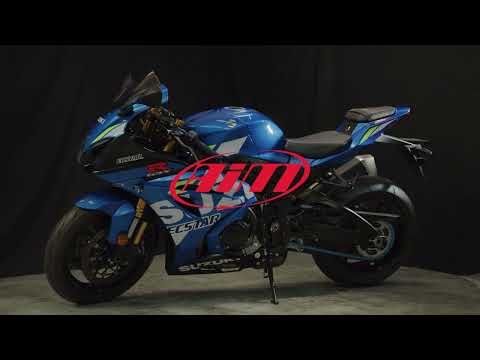
Official installation tutorial of the new Plug&Play Dash exclusively designed for GSX-R 1000 (2017-2022).