


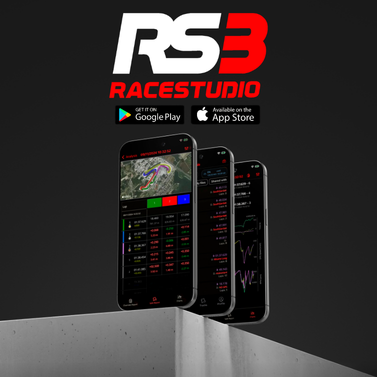
Quick Summary: To connect your data logging SmartyCam 4 Corsa camera to the Race Studio 3 app, download the app from the iOS/Android store, enable Wi-Fi on your smartphone and ensure the camera is powered. Open the app, select the camera, and configure camera settings in the app by going through each of the tabs. Connecting the device takes less than 5 minutes, and the complete setup takes around 10 minutes, depending on what you're adjusting.
What You Need For Setup
- Hardware: Data logging device (connected to a power source). For this how to guide, we will be using the SmartyCam 4 Corsa camera.
- Software: Aim Race Studio 3 (RS3) app installed on an iOS or Android device.
- Connectivity: Wi-Fi network.
Connecting The Camera To The RS3 App
There are 3 simple steps to connect your SmartyCam 4 camera to the Race Studio 3 app.
Step 1: Download The Race Studio 3 App
- On your smartphone or tablet, download the official Race Studio 3 app for free through the Apple App Store or Google Play Store.


Step 2: Connect The Smartyam 4 Camera
- Ensure the SmartyCam 4 Corsa is externally powered and that your smartphone or tablet has Wi-Fi enabled.
- On your smartphone or tablet, search and connect to the camera's Wi-Fi. It will be named Aim SC4, SmartyCam 4 or similar.
- On the RS3 app on your smartphone or tablet, select the camera that you just connected.
Step 3: Configure The Race Studio 3 App
- Customise settings to tailor the camera to your preferences: session information, overlay control, power-off timer, horizon lock, audio adjustments, flip camera and spotlight position.
- Session information allows you to add details such as driver and vehicle name, championship and session type.
- Turn data overlays on/off depending on whether you just want video footage or full telemetry overlays.
- The power-off timer allows you to choose how long the camera remains powered on after a session ends.
- A key feature of the SmartyCam 4 Corsa is its ability to lock and stabilise on the horizon. By enabling this setting, the camera can be installed in motorcycles, off-road vehicles and race cars to keep footage stable, even when the vehicle leans or moves drastically.
- Zoom main view lets you adjust the zoom level up to 150% for a tighter field of view.
- Adjust audio settings with internal microphone gain and external microphone gain, depending on where the camera is mounted in the vehicle.
- If the camera is mounted upside down, simply enable 'Flip Camera' to automatically correct the video orientation.
- Spotlight position allows you to pinpoint where the camera should focus. For example, focus should be towards the windscreen for closed cockpit vehicles to reduce glare and improve footage quality in bright conditions.
Race Studio 3 App Features
- In the 'Info' tab, you can monitor recording status, battery level, GPS signal and selected track. You can also start and stop recording directly from the Race Studio app.
- The 'Firmup' tab allows you to see which firmware version your SmartyCam 4 Corsa is using. Ensure that your firmware is kept up to date for the latest features, improvements and bug fixes.
- In the 'Real Time' tab, view live data and sensor information to verify analogue inputs, check sensor calibration and monitor live measurements to confirm everything is working before you head out on the track.
- The 'Tracks' tab controls which track overlays are stored on the camera. For best results, only keep the tracks you'll use that day and remove unused configurations to keep things simple.
Need Help With Your Setup?
If you have any questions about connecting or configuring your SmartyCam 4 Corsa through the Race Studio 3 app, our team are always on hand to help. Get in touch with Aim support for help or advice to get the most out of your motorsport camera footage.
Share:
Motorsport Sensors Guide: Choosing The Right Car Racing Sensors