


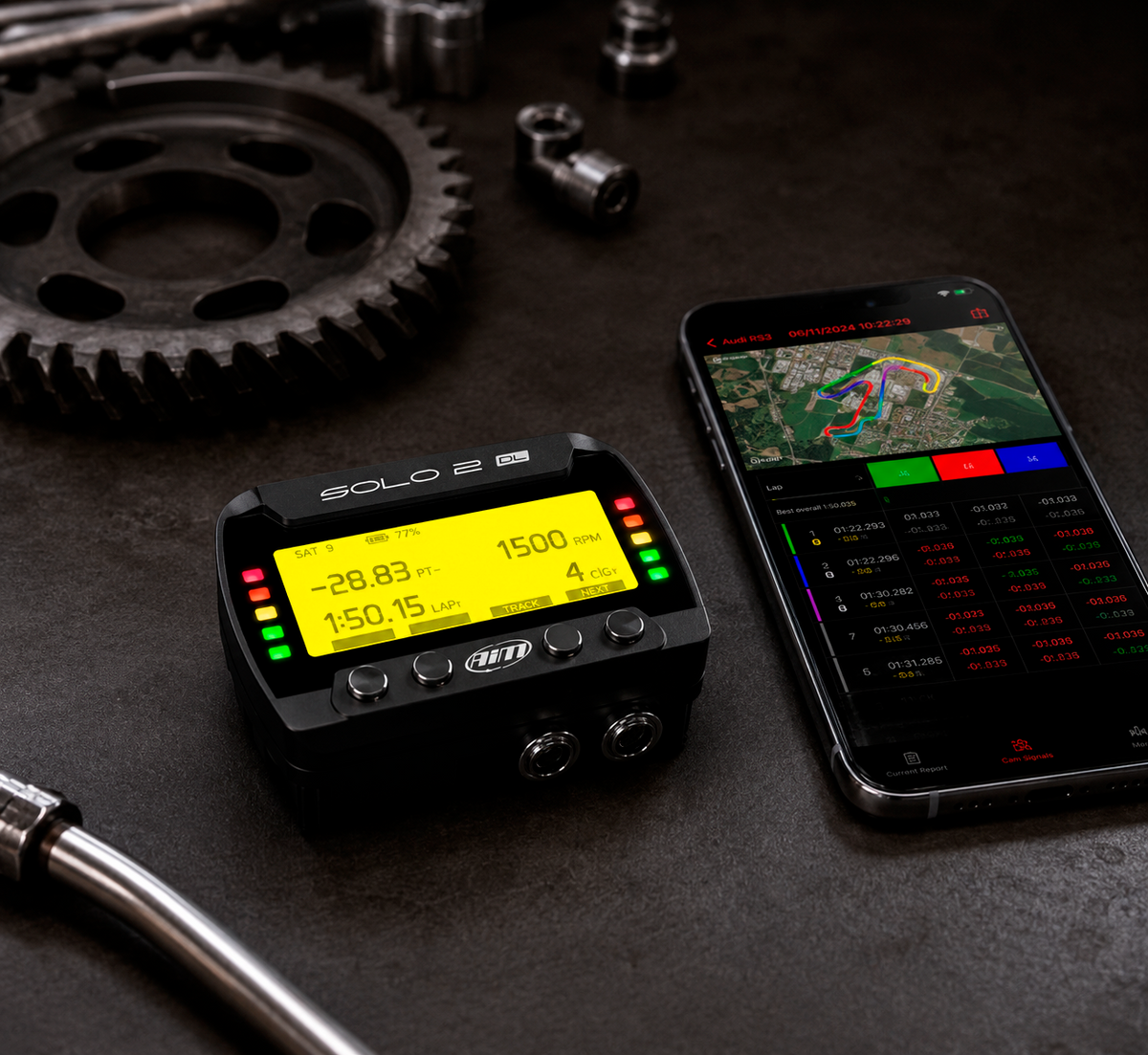
Released in June 2026, the Race Studio 3 App is available to download for free on iOS and Android devices, allowing you to download session data, run basic analysis and update your device trackside. In this article, we'll discuss some of the key features of the RS3 App and how to use it for data analysis.
What You Can Do With the RS3 App
The Aim Race Studio 3 App allows for basic lap analysis and easy collection of your data. With the RS3 App, you can:
-
Connect and configure your hardware over Wi-Fi.
-
Download and manage sessions.
-
Run top-level analysis.
-
Send files to the Aim Cloud for desktop analysis.
Race Studio 3 App Navigation Bar
4 icons on the navigation bar allow you to do different things within the app:
-
Analysis: Lists your sessions. This is also where you can review downloaded data.
-
Device: Connects to your Aim device, so you can manage certain features (more on this in the next section).
-
Tracks: Lists all of the tracks available, starting with the nearest tracks first.
-
Profile: Here you can log in to your Aim Cloud account. This is particularly useful because you can download files to your phone and send them directly to the Aim Cloud for further analysis on your desktop Race Studio 3 software.
Managing Your Device
Within the ‘Device’ tab, you will find your connected device. Please take a look at our ‘How to Connect an Aim Device to Race Studio 3 App’ for an in-depth tutorial. Once the connection has been confirmed, you will see several options:
-
Firmware: This is where you can upgrade your device's firmware. We recommend that you update firmware often and with enough time before you go to a track to ensure the update has completed.
-
Real-Time View: This is an extremely useful tool for devices that have Wi-Fi enabled, as it shows a live feed of the sensors being recorded.
-
Tracks On Your Device: This screen shows which maps have been loaded, including local tracks and tracks that you have added.
-
Data: This section allows you to see all the sessions on the device, select the ones you want, and either download or delete them.
In-App Data Analysis
Configuration is where the Race Studio 3 App stands out above other third-party apps, but it also offers quick, basic data analysis.
Local vs Cloud Analysis
Many apps only allow you to download data over Wi-Fi, then upload it to a cloud before you can analyse it. The issue with this is weak signals. With the Aim Race Studio 3 App, it keeps a local copy on the phone, so it can be analysed on the track, even if there is no signal.
Session Overview
Session summary shows your best lap time, number of laps and minimum speeds, with a chart across all laps.
Channels Report
By default, the Race Studio 3 App picks up GPS speed and internal battery as standard, showing the information based on the lap you were running. The channels report also greys out the inlap, the outlap and any laps with a significantly slower time. You can change the selected channels to show only what you want to know.
Split Report
Split report shows lap times by track segment. It’s designed for quick assessment of how fast or slow you’re driving through each of the track segments.
Charts
Within the charts tab, you can compare up to 3 laps, 2 channels and 1 session at a time. 3 charts appear showing GPS speed with a track map, GPS longitudinal and time over distance. For many drivers, the charts tab is all they need to see where they gained or lost time at a glance.
Final Thoughts
The Race Studio 3 App is best suited for configuring your device from your phone and quickly analysing session data at a glance. For deeper analysis, send your files to the Aim Cloud to analyse your track performance in detail.
Share:
Race Studio 3 August 2026 Updates